✦ Chrome Extension — Manifest V3

Never Miss a Critical Zendesk Ticket Again

ZenNotif delivers persistent audio alerts for new Zendesk tickets — even when the tab is in the background. Built with Chrome Manifest V3, zero API tokens required.

Sound Alerts Cross-Tab Audio Zero API Setup Manifest V3 Open Source

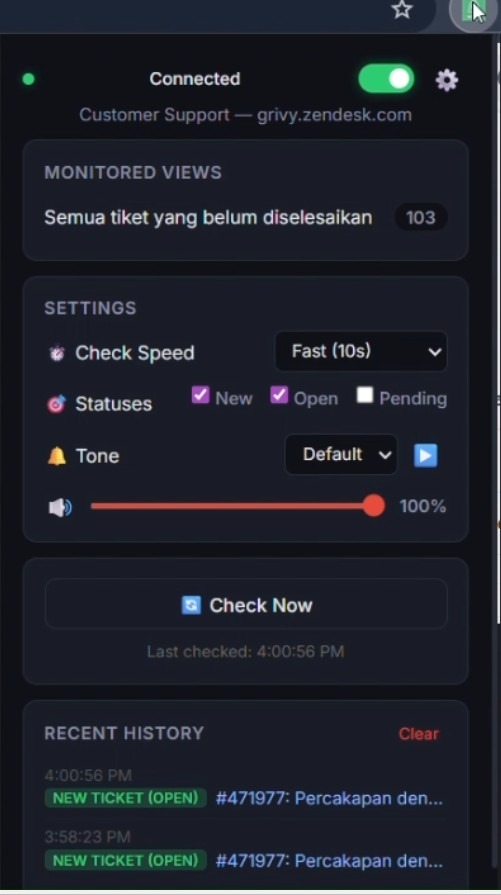
Extension Popup Dashboard

ZenNotif dashboard showing monitored views, settings, and notification history

The ZenNotif popup displays monitored Zendesk views, polling settings, tone selection, volume control, and recent notification history.

ZenNotif

ZenNotif

agent@acme.zendesk.com
Connected
Monitored Views
Unassigned Tickets 3
High Priority 1
My Open Tickets 7
Settings
⏱️ Check Speed
🎯 Statuses
🔔 Tone
🔊 80%

Last checked: 10:24:51

Recent History

No notifications yet.

How It Works

1

Connect

Enter your Zendesk subdomain. The extension uses your existing browser session — no API tokens needed.

2

Select Views

Choose which Zendesk views to monitor. Pick from any view available in your instance.

3

Configure Alerts

Set polling interval (10s / 30s / 60s), choose tone, and adjust volume to suit your environment.

4

Receive Notifications

When new tickets arrive, ZenNotif plays audio through Chrome's offscreen document — even in background tabs.

What Makes ZenNotif Different

🔊

Cross-Tab Audio Alerts

Sound plays through Chrome's offscreen document system, so you hear alerts even when Zendesk is in a background tab or minimized.

🔑

Zero API Tokens

Uses your existing Zendesk session cookie — no API tokens, no setup friction, no security risks for non-technical agents.

Configurable Polling

Choose from Fast (10s), Medium (30s), or Normal (1 min) polling intervals to balance responsiveness with resource usage.

🎵

Multiple Tones

Select from Default, Bell, Chime, Alert, or Soft tones. Adjustable volume slider to suit open offices or quiet environments.

📋

Selective View Monitoring

Monitor only the Zendesk views that matter to your role. Pick from any view in your instance with a single click.

📊

Notification History

Track recent alerts in the popup dashboard. See ticket subjects, arrival times, and status at a glance with one-click navigation.

Security & Firewall Considerations

✓ Works

Corporate VPN

ZenNotif uses standard HTTPS to <subdomain>.zendesk.com/api/v2 with your existing session cookie. Any VPN or firewall that already permits agents to use Zendesk in the browser will permit ZenNotif too.

✓ Works

Host Mapping

Custom Help Center domains (e.g. help.company.com) don't affect the agent workspace. ZenNotif always talks to the canonical Zendesk API subdomain, so host-mapped instances behave identically to standard ones.

✓ Works

SSO & SAML

Because auth relies on the browser's session cookie, whatever login flow your org uses — Okta, Azure AD, Google, password — just works. No tokens to rotate, no secrets to manage per agent.

! Caveat

SSL Inspection / CASB

If your corporate proxy intercepts HTTPS with a custom root CA, make sure that CA is trusted by Chrome's store. Blocks caused by CASB policies surface as a clear "Connection error" in the popup — no silent failures.

! Caveat

Chrome Enterprise Policy

If IT uses ExtensionInstallBlocklist, agents need the extension ID added to the allowlist. Load-unpacked developer mode is blocked by default in managed fleets — a one-line policy change unblocks it.

✓ Privacy

Data Stays Local

All ticket snapshots, history, and preferences live in chrome.storage on the agent's machine. Nothing is transmitted to third-party servers. No analytics, no telemetry, no external dependencies.

Quick IT smoke test: open https://<subdomain>.zendesk.com/api/v2/users/me.json in a new tab. If JSON appears, the network path is clear for ZenNotif. If the request is blocked, loop in your security team — the extension surfaces the same error.

Manifest V3 Architecture

Content Script

Keep-Alive Pinger

Service Worker

Background Polling

Offscreen Doc

Audio Playback

Zendesk API

Session Cookie Auth

Service Worker Handles background polling, alarm scheduling, and state management. Replaces the persistent background page from Manifest V2.
Offscreen Document Required in Manifest V3 for DOM-based audio playback. The service worker delegates sound playback to this hidden page.
Content Script Injects a keep-alive pinger into Zendesk pages to prevent the service worker from hibernating during long sessions.
Session Cookie Auth Leverages the user's existing Zendesk login session — no API token setup required, seamless integration.

Implementation Highlights

// Background polling with alarm-based scheduling
chrome.alarms.create('zennotif-poll', {
  periodInMinutes: parseInt(interval) / 60
});

chrome.alarms.onAlarm.addListener(async (alarm) => {
  if (alarm.name === 'zennotif-poll') {
    const tickets = await fetchTickets(subdomain, viewId);
    const newTickets = filterNewTickets(tickets, lastCheck);
    if (newTickets.length > 0) {
      playNotificationSound(tone, volume);
      showBrowserNotification(newTickets);
    }
  }
});
// Offscreen document for audio playback (Manifest V3)
async function playNotificationSound(tone, volume) {
  await createOffscreen();
  await chrome.runtime.sendMessage({
    type: 'play-sound',
    tone: tone,
    volume: volume / 100
  });
}

async function createOffscreen() {
  if (await hasOffscreenDocument()) return;
  await chrome.offscreen.createDocument({
    url: 'offscreen.html',
    reasons: ['AUDIO_PLAYBACK'],
    justification: 'Required to play ticket notification sounds.'
  });
}

Install ZenNotif

1

Download the Extension

Clone or download the repository from GitHub. Extract the ZIP file to a folder on your computer.

2

Enable Developer Mode

Open Chrome and navigate to chrome://extensions. Toggle "Developer mode" on in the top-right corner.

3

Load Unpacked

Click "Load unpacked" and select the folder containing the extension files (the folder with manifest.json).

4

Connect to Zendesk

Click the ZenNotif icon in your toolbar. Enter your Zendesk subdomain, select views to monitor, and start receiving alerts.